> For the complete documentation index, see [llms.txt](https://docs.literatu.com/llms.txt). Markdown versions of documentation pages are available by appending `.md` to page URLs; this page is available as [Markdown](https://docs.literatu.com/lesson-3-create-an-activity-for-students.md).
# Lesson 3: Create an Activity for Students
If you have already done [Lesson 1](https://docs.google.com/document/d/1_VtGpJLO67A8GsPUrclAN6Z3tvTjgjOQ5FYfFnXPtT0/edit?usp=sharing), you know about the insights and work samples Scribo generates for every class set of texts. If you have completed [Lesson 2](https://docs.google.com/document/d/13u_Gs73JnEhudbuWhKd2h_BXOhtCM6aOCr5NWl29FNs/edit?usp=sharing), then both you and your students have a good idea of what Scribo’s Writing Check can do for you and how it works. Let’s take the next step and actually assign a writing activity that students will complete in Scribo.
## Step-by-Step
### **1. Create a New Activity – For Students**
Just like in Lesson 1, the place to start is with the “Add New Activity” link in the left menu. This time you will choose “Students will use Scribo”.
## 
Just fill in the form as you did before, but this time, because students will be assigned the activity, you want to include the important parts they will see that guide their writing:
* Prompt
* Keywords
* Stimulus
**A note about Browsers** – Chrome tends to work best with some of the tools used within Scribo (such as the rich text editor in the Set up and the Comment pop-up when you give feedback to students).
Use the online help located in the “**?**” icon in the top right of the screen if you need tips.

### **2. Choosing or Creating a Class & Other Settings**
Refer to [Lesson 2](https://docs.google.com/document/d/13u_Gs73JnEhudbuWhKd2h_BXOhtCM6aOCr5NWl29FNs/edit?usp=sharing) for details about whether your school has its student class data synced to Scribo or whether you are having students self-register and join classes. If you have classes synced from your timetable, you will see them as “existing class(es)” to choose from (you can multi-select if you want more than one class to do an activity).

If students self-register, they can use the class code assigned when you click on “Create a new class". Students can either register for Scribo with this, or if they have already registered (they have a log-in from using the Writing Check), they will see a “Join a Class” option on their main screen in two places: the lower left of the sidebar menu and at the top right near their name. They enter the code here.
|  | 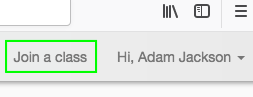
In the upper right of the screen
|
| ---------------------------------------------------------------------------------------------------------------------------------------------------------------------------------------- | -------------------------------------------------------------------------------------------------------------------------------------------------------------------------------------------------------------------------------------------------------- |
You will see the Code in the pop-up after adding the activity and in the detail panel to the right when you create a class. Note – some teachers will create a “class” as a way to provide a targeted activity to a sub-group of their timetabled class, to provide differentiated support or extension for some students (even across classes).

### **3. Completing the Setup Form**
The items below the “Classes” section of the form allow you to set details about the activity. See the online Help for details on each set of the form.

After Clicking the Next button, you will see the activity listed either in a general “Writing” class or one of your timetabled classes (depending on whether you created a new class or used one that was synced to your log-in).

| In the right panel you can see how many students have handed-in their activities. | |
| --------------------------------------------------------------------------------- | - |
### **4. Students Access the Activity**
For students to easily get started on the Activity, they can either log into [www.literatu.com](http://www.literatu.com/) or you can copy and paste a link in your Web site (Classroom, LMS, Blog, etc.):

View the [animation as a video](https://recordit.co/EDoEXmqruv)
### **5. Let Students Write!**
One of the best things about Scribo is that it doesn’t tell you how to teach writing – instead it acts as you and your students’ assistant, providing feedback on what the analytics have noticed.
So go ahead and introduce the activity you just set up as you normally would. You might conduct a brainstorming warm-up or other pre-writing activity. Or you might want students to encounter the activity and its stimulus without any help from you. All these options are up to you. Use Scribo as part of your writing process and find out what features help you and your students the most.
Here is [a video showing some initial](https://vimeo.com/281194437/aa9f22abe1) things you might like to do with Scribo.
{% embed url="" %}
### **6. One Possible Option – Quick Write and Feedback**
If you would like to try a trial run with Scribo, one option for using it for the first time is to try an in-class quick write where you might ask students to write the introductory paragraph to a persuasive or analytical essay or an engaging opening of a narrative. This way you could use a first trial of Scribo as an experiment to explore Scribo with students in the spirit of discovery.
Once the texts have been submitted, run the report and view with “Hide Students.”
|  |  |
| ----------------------------------------------------------------------------------------------------------------------------------------------------------------------------------------- | ----------------------------------------------------------------------------------------------------------------------------------------------------------------------------------------- |
Share your favourite aspects and engage students in a couple of targeted teaching activities (see videos).